How to Create Invoices in L’Invoice
The L’Invoice module lets you produce VAT-compliant and Sales Tax–compliant invoices in just a few steps. Simply select a document type, enter the required customer and product information, and generate a ready-to-send invoice instantly.
Why use L’Invoice for generating invoices?
L’Invoice ensures your invoices align with Peppol and VAT requirements, cuts down on manual effort, and handles tax calculations automatically. The platform keeps you compliant while centralizing all your documents in a single location.
1. Prepare to create your first invoice
To begin, log in to your Lappa platform using your account credentials.
Once logged in:
- Log in to your Lappa account.
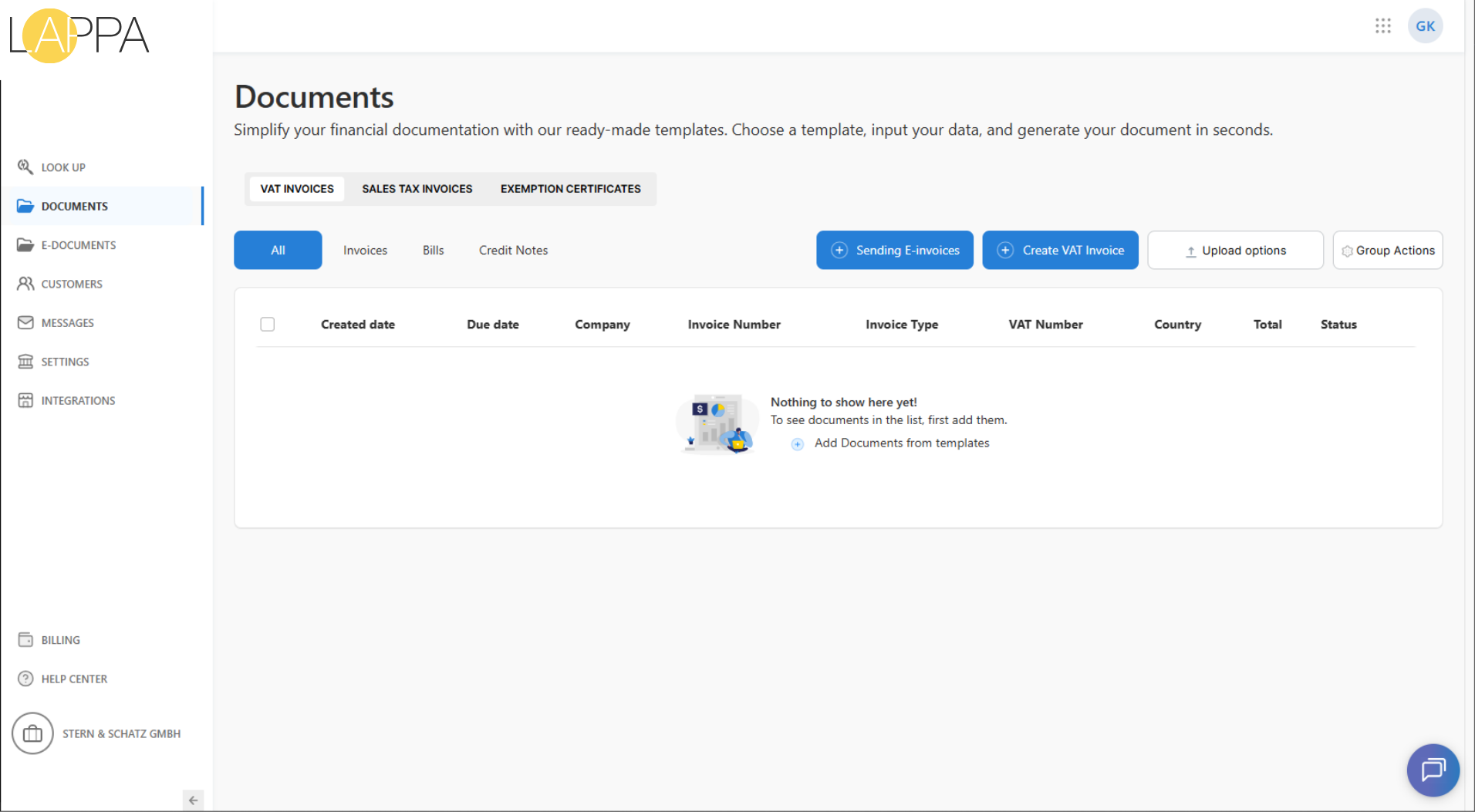
- In the left-hand menu, click Documents.
- Choose the invoice type you need:
- VAT Invoices (for cross-border B2B in EU or VAT countries)
- Sales Tax Invoices (for US and domestic tax rules)
- Click Create VAT Invoice or Create Sales Tax Invoice to begin.
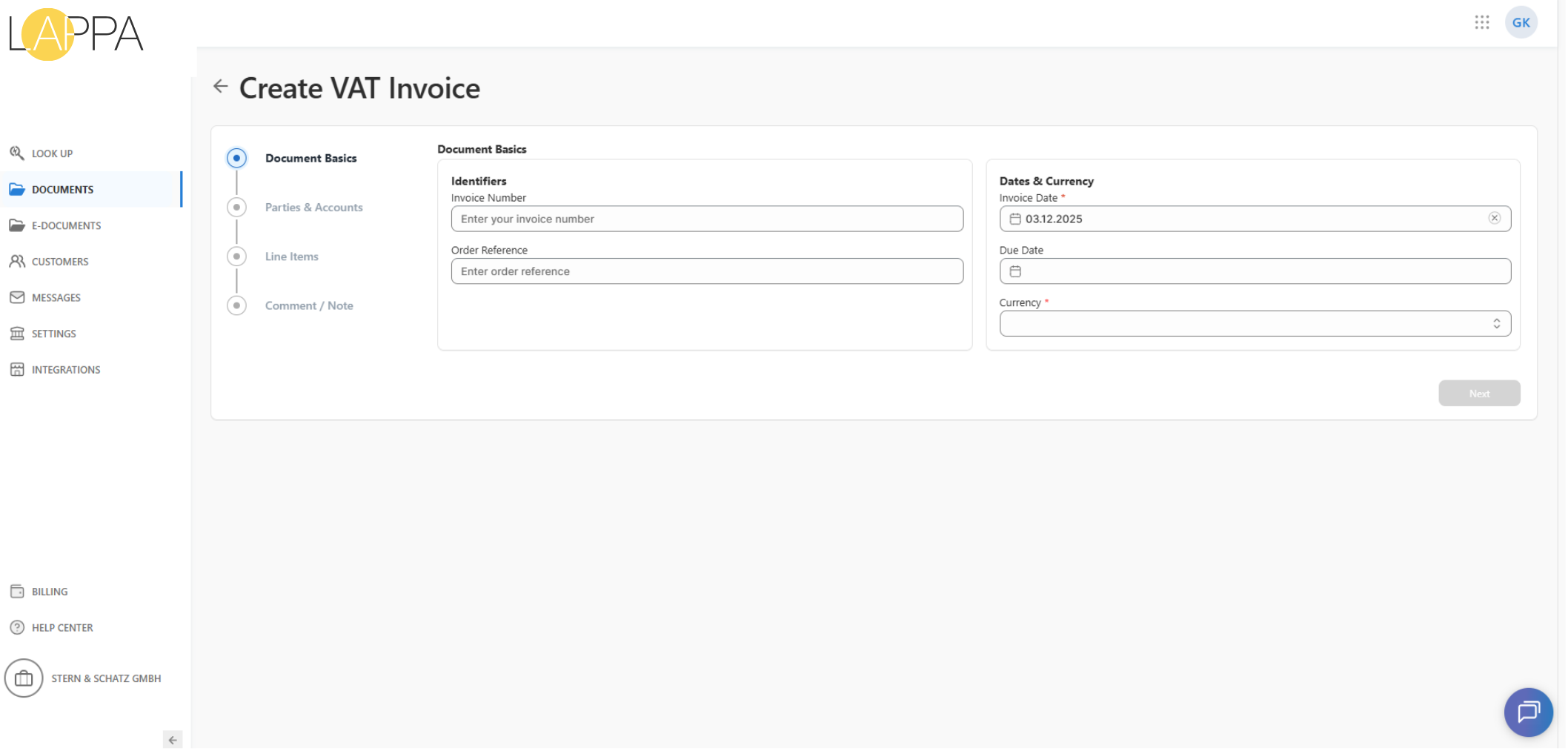
Step 1 — Document Basics
1. Document Basics
The opening step when creating a VAT Invoice (or Sales Tax Invoice) involves completing the core document information.
This section covers identifiers and date-related fields that define your invoice. Certain fields are required before you can move forward.
Mandatory fields
- Invoice Date – the date when the invoice is issued.
- Currency – select the currency in which the invoice will be created.
Optional fields
- Invoice Number – if not provided, L’Invoice can generate an invoice number automatically according to your numbering settings.
- Order Reference – any external reference or purchase order number related to the transaction.
- Due Date – the date by which the customer must pay the invoice.
After entering the required information, click Next to proceed to the “Parties & Accounts” step.
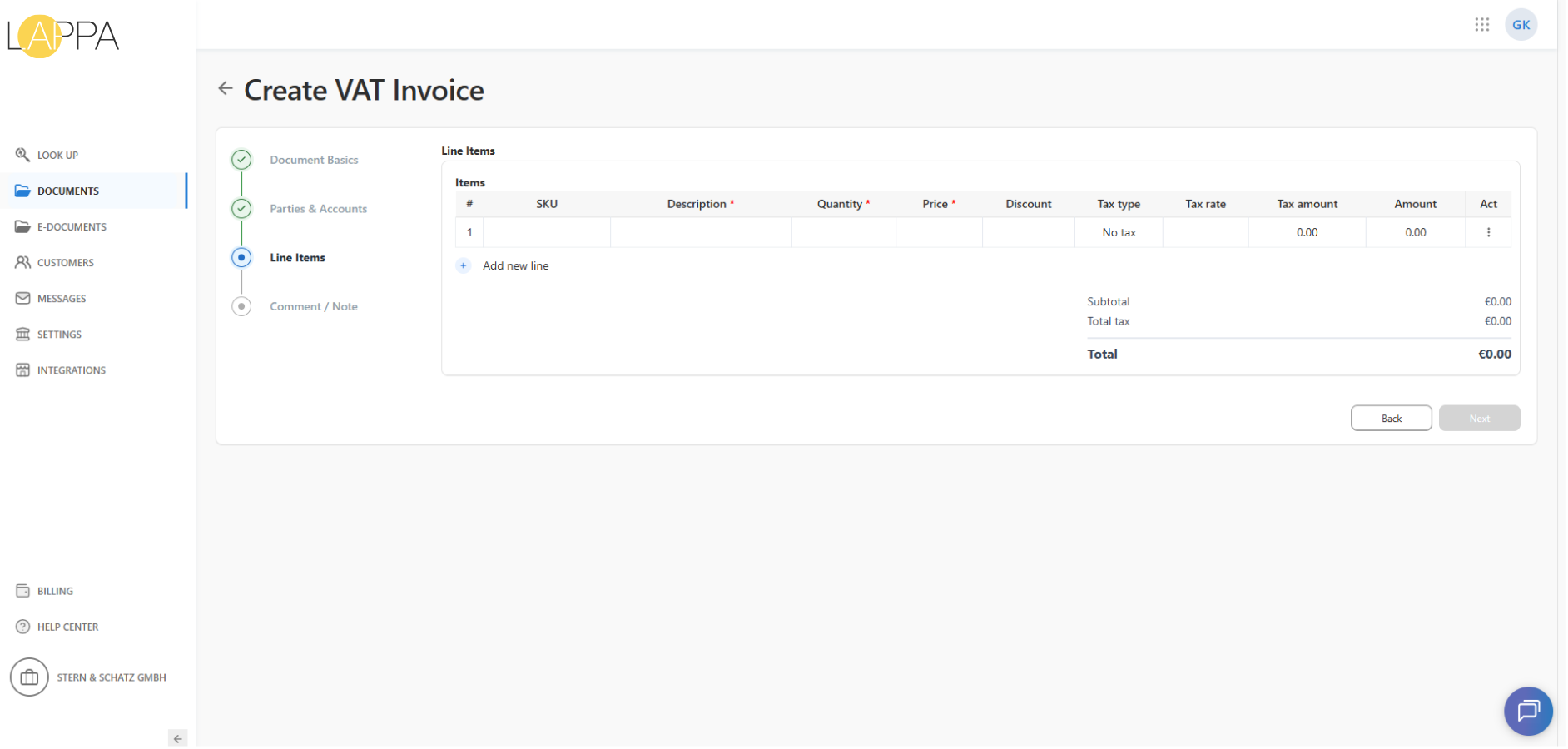
Step 3 — Line Items
This step requires you to add all products or services to be included in the invoice.
At least one line item must be entered before you can proceed.
Adding Line Items
Add new line
Click “+ Add new line” to insert an empty row directly into the table.
The row will appear right away, but its fields will be blank.
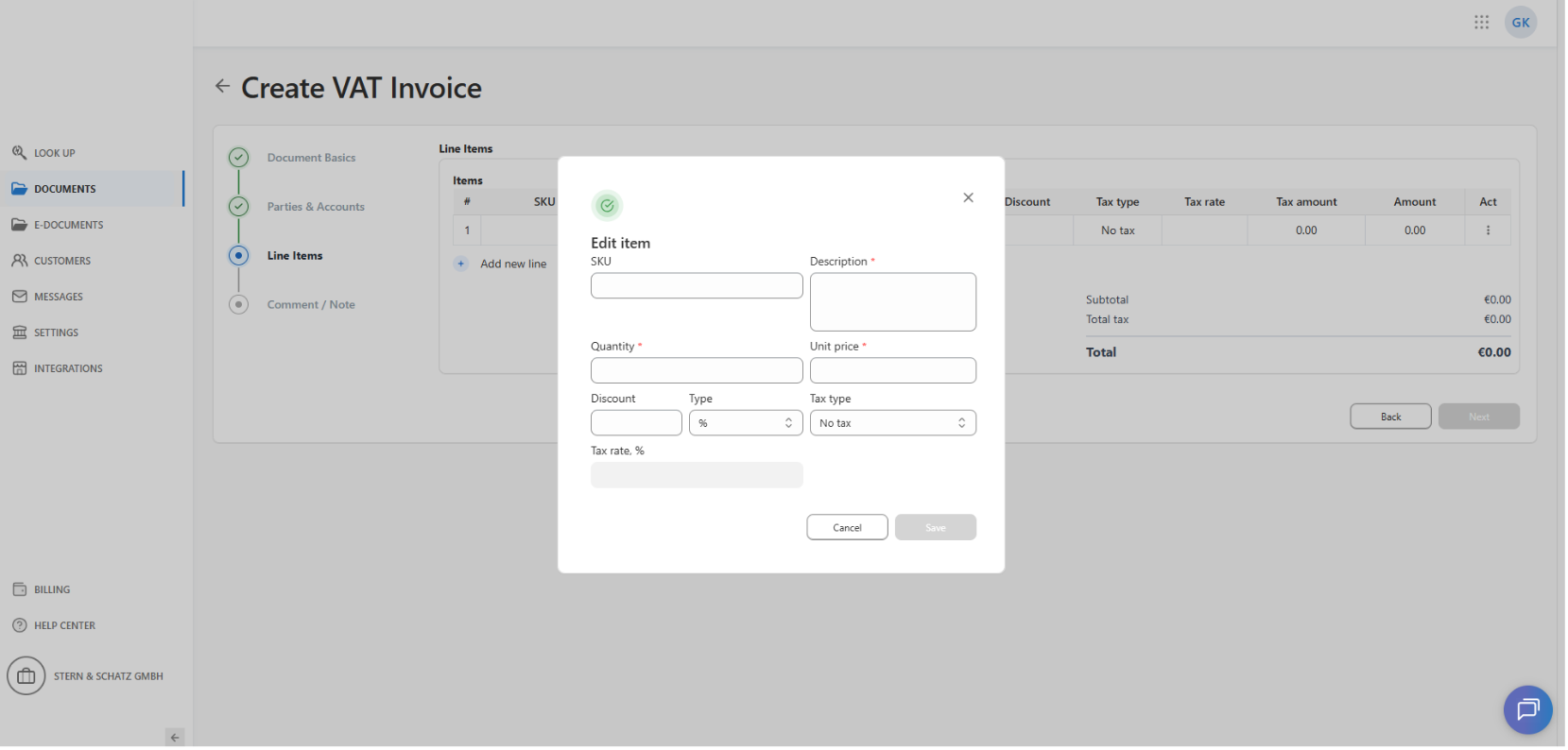
Opening the item modal
To enter or update item details, click anywhere on the row.
This launches the item modal where you can specify all required and optional information.
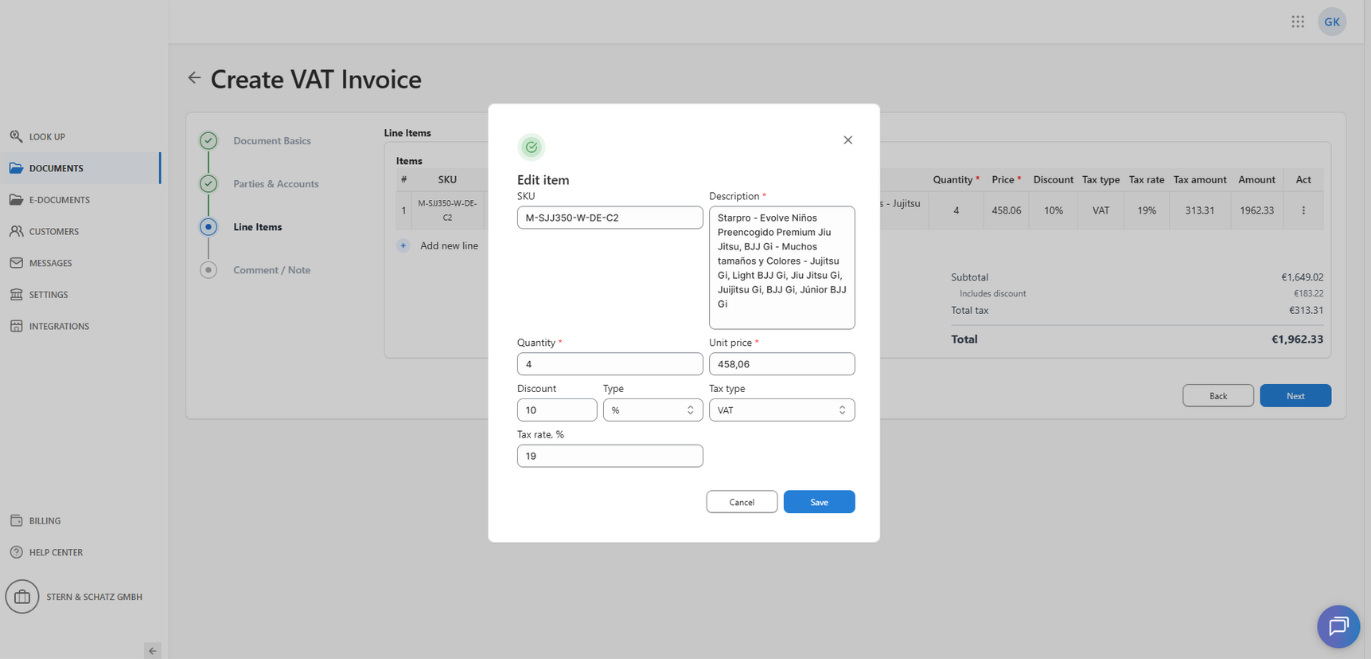
Item Modal — Required and Optional Fields
Mandatory fields inside the modal:
- Description* – name or details of the product/service
- Quantity*
- Price*
Optional fields:
- SKU
- Discount (amount or percentage)
- Tax information (Tax type, Tax rate, Tax amount depending on country rules)
Click Save to apply the values to the selected row.
Line Item Table Overview
Each created or updated line is displayed in the table with the following columns:
- # — item index
- SKU
- Description*
- Quantity*
- Price*
- Discount
- Tax type
- Tax rate
- Tax amount— calculated automatically
- Amount — calculated automatically
- Act — action menu (“…”)
Actions Available for Each Line
Click the “…” menu on the right side of a row to access:
- Edit — opens the modal to update the line
- Clone — duplicates the line with all its values (useful for similar items)
- Delete — removes the line from the invoice
Invoice Totals
All totals are calculated automatically based on the line items.
- Subtotal — sum of all item amounts before tax and discounts
- Discounts — if any line contains a discount (amount or percentage), the total discount is calculated automatically and displayed in the summary
- Total tax — sum of all tax amounts
- Total — final amount payable after applying discounts and taxes
Totals update dynamically whenever items are added, edited, cloned, or removed, or whenever discounts change.
Navigation
After adding at least one line item, click Next to move forward.
Use Back to return to any previous step.
Option 2. Registering a New Peppol ID
Use this option if the client needs to register a new Peppol ID.
Step 1. Basic information
- In the first tab, provide:
- Company Name
- Country
- Identifier Type (several options are available)
- Identifier (e.g. VAT Number or another identifier)
- Click Next.
Identifier Types
The available Identifier Types depend on the country selected.
Each country may support its own national identifiers, while some types are internationally applicable across multiple countries.
Country-specific identifiers
Depending on the country, you may see local identifiers such as:
- VAT (e.g. France VAT Number)
- SIRET
- SIREN
- Other national business or tax identifiers
These identifiers are issued by local authorities and are commonly used for legal and tax purposes.
International identifiers
In addition, there are several international identifier types available for all countries, including:
- DUNS (Data Universal Numbering System)
- GLN (Global Location Number)
- LEI (Legal Entity Identifier)
- IBAN (Unique IBAN-based participant code)
⚠️ Note:
Although IBAN is available as an identifier type, it is not recommended for Peppol registration.
Recommendation
For Peppol ID registration, using a VAT number is strongly advised whenever possible, as it is the most broadly accepted and commonly used identifier among Peppol participants.
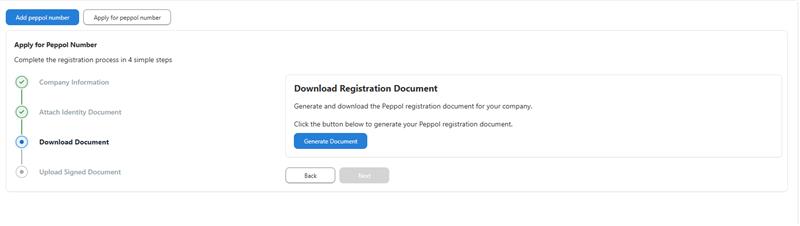
Step 2. Identity documents
- Upload documents for identity verification.
- Click Next.
Step 4 — Comment / Note
In this final step, you have the option to include any supplementary comments or notes to appear on the invoice.
This section is not mandatory, but it is frequently used to communicate payment terms, delivery details, legal notices, or any other relevant information the recipient should know.
You may enter:
- Payment terms (e.g., due dates, penalties for late payment)
- Legal or contractual information
- Customer-specific instructions
- Clarifications about services or products
- Internal reference notes that should appear on the final invoice
Example:
“Payment must be received by the due date indicated above. Late payment may result in the invoice becoming void.”
Navigation and next steps
- Back — return to the previous step if you need to update any information.
- Save as draft — save the invoice without sending it. It can be edited later.
- Review & Send Invoice — proceed to the invoice preview, where you can double-check all details before sending or exporting.
Once you’ve added your notes and are satisfied with the invoice, click Review & Send Invoice to complete the process.
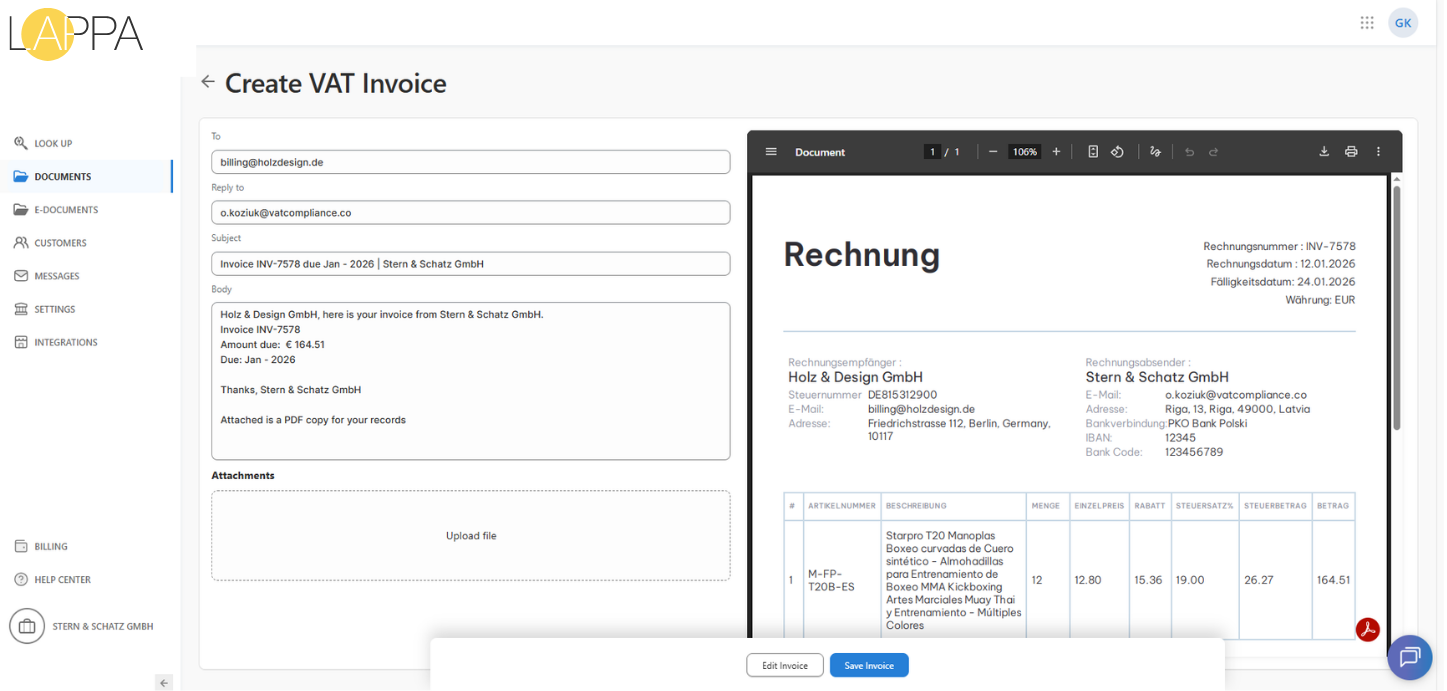
Final Step — Review & Send Invoice
This step allows you to review the full invoice and customize the email that will be delivered to the customer.
All fields in the email section — To, Reply to, Subject, and Body — are fully editable so you can tailor the message accordingly.
Email customization
You may adjust:
- Recipient address (To) — the customer’s email is pre-filled, but you can change it if needed.
- Reply-to address — defines where the customer’s response will be delivered.
- Subject line — automatically generated from the invoice number, but can be rewritten.
- Email body — includes a default message with the invoice amount and a friendly note; feel free to rephrase or add additional information.
Attachments (optional) can also be included by uploading files in the Attachments section.
Invoice preview
On the right-hand side, a real-time PDF preview displays the invoice exactly as the customer will see it.
This allows you to verify amounts, customer details, tax data, and formatting before sending.
Save the invoice for next actions
When you click Save Invoice, the invoice is saved and becomes available for further actions, such as:
- sending to the customer via Email
- creating a structured e-document (e.g., Peppol / BIS, if applicable)
- downloading the PDF
- returning later for editing and final checks
Additional options
Edit Invoice — go back at any point to adjust details if something needs to be corrected.