
Creating and sending E-Documents
This guide covers when e-document creation becomes available in the platform and what preparations are needed beforehand. It also explains how the process differs between Peppol and Croatia (Fiskalizacija 2.0), how to generate e-documents individually or in bulk, and how to deliver them once created.
Important
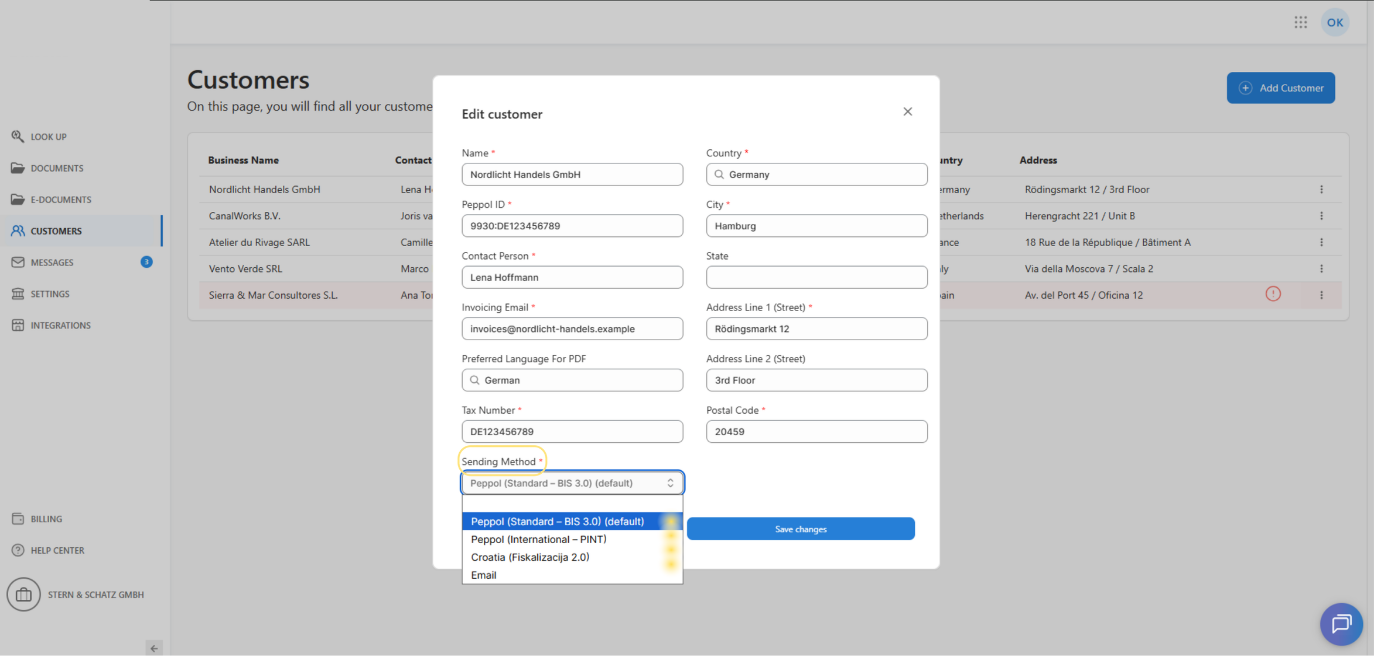
An e-document can only be generated if the customer has a compatible Sending method assigned.
Supported methods:
- Peppol (Standard — BIS 3.0) (default)
- Peppol (International — PINT)
- Croatia (Fiskalizacija 2.0)
Not supported:
- Email → e-document creation is not available.
1.Overview
The Create e-document feature enables you to convert standard invoices into electronic documents for transmission through dedicated networks:
- Peppol (BIS 3.0 / PINT)
- Croatia fiscalization system (Fiskalizacija 2.0)
Availability of this feature depends on the Sending method configured for the customer in their settings.
2. Supported sending methods
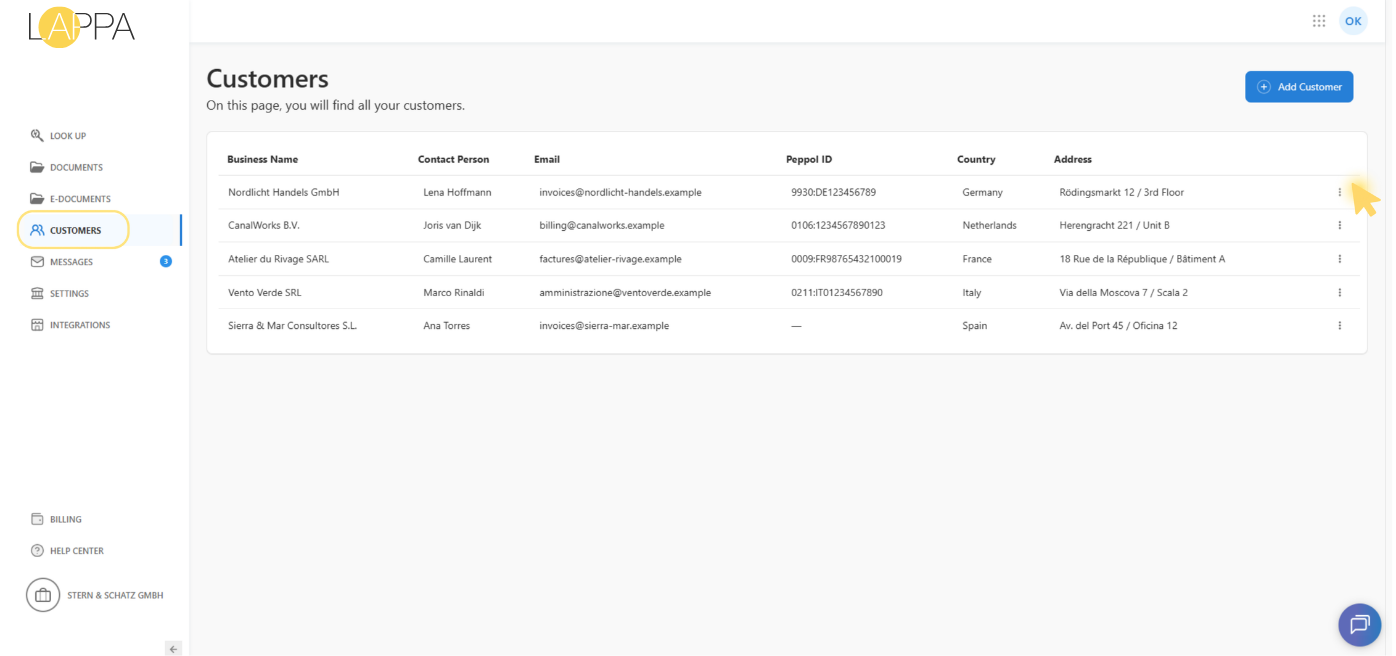
The Create e-document option is only accessible when the customer has one of the supported sending methods selected.
3. Required conditions before sending
3.1 For Peppol (BIS 3.0 / PINT)
When the customer has Peppol (Standard — BIS 3.0) or Peppol (International — PINT) selected, the conditions below must all be satisfied before an e-document can be created or sent.
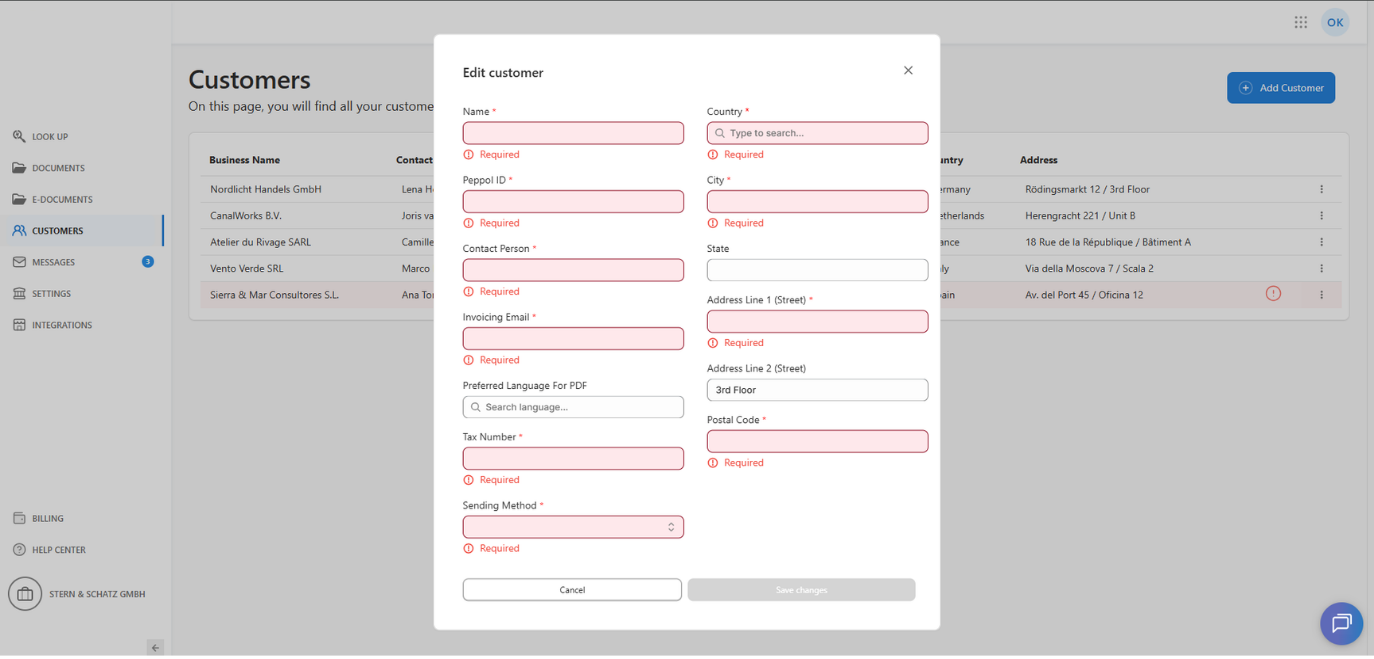
Condition 1 — Complete customer profile
All required company information must be filled in:
- Business Name
- Contact Person
- Address (Address Line 1)
- Tax Number
- Postal Code
- City
- Country
- If the profile is incomplete, the platform will not allow you to create/send an e-document.
- Peppol ID
Condition 2 — Select Peppol ID in settings
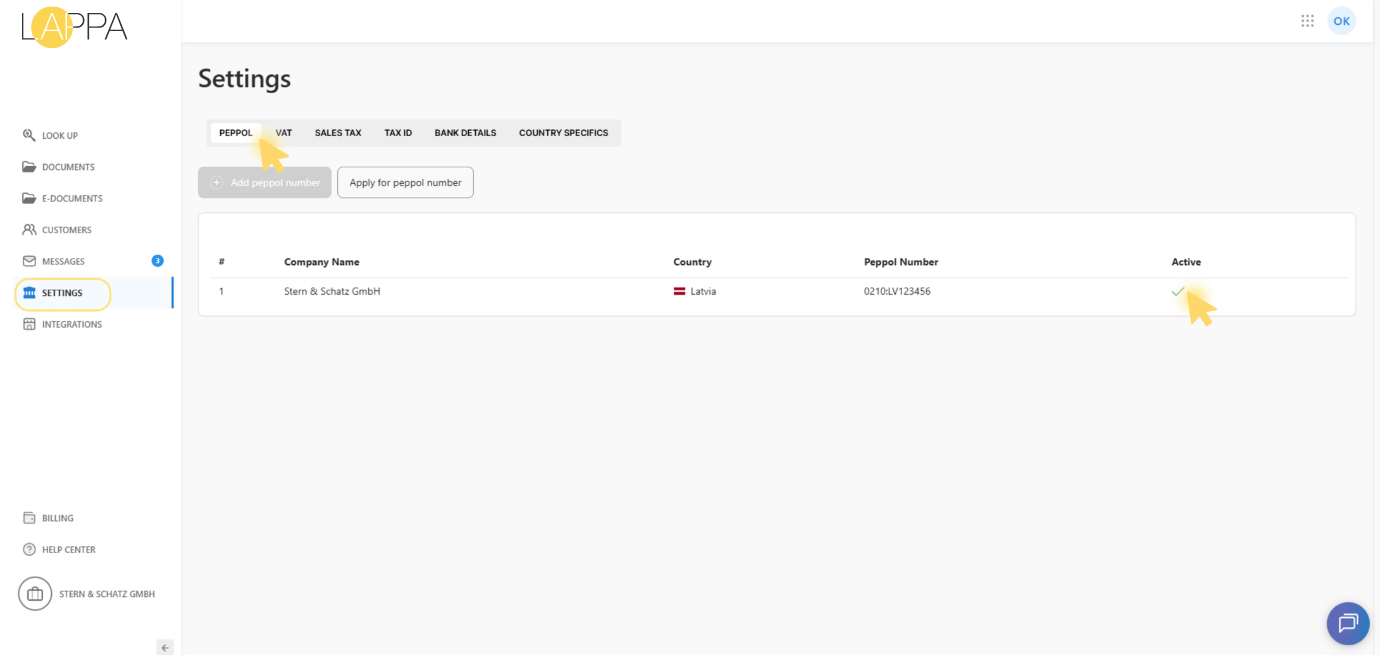
A Peppol ID must be designated and selected within Settings.
Condition 3 — Peppol ID must be confirmed by manager
The selected Peppol ID must be reviewed and approved by a manager.
Until approval is received, the platform will block the sending action (and may also hide or disable creation depending on system behavior).
3.2 For Croatia (Fiskalizacija 2.0)
For Croatia (Fiskalizacija 2.0), the rules differ from Peppol.
Rule 1 — Peppol ID is NOT required
For Croatia, the customer does not need a Peppol ID.
Rule 2 — Tax number is required
The customer must have a tax number specified.
If tax number is not filled in, creating/sending e-documents for Croatia is not available.
Rule 3 — Manager contact required (activation)
Croatia’s fiscalization process involves additional steps that cannot be fully completed by the customer through the interface alone.
Before the Croatia (Fiskalizacija 2.0) method can be activated and used, the customer must reach out to a manager to complete the necessary setup, which includes:
- confirm/agree on the fiscalization provider
- complete mandatory verification/setup steps
- receive confirmation that the customer is ready to send
Only after this can the customer create and send e-documents.
4. Step-by-Step: How to create and send an E-Document
Step 1 — Check sending method
Open the customer settings and review the Sending method.
If Email is selected, e-document creation is not an option.
Step 2 — Complete required conditions
Depending on the method:
A) Peppol (BIS 3.0 / PINT)
- ensure the customer profile is complete
- select a chosen Peppol ID in Settings
- ensure the manager has confirmed the chosen Peppol ID
B) Croatia (Fiskalizacija 2.0)
- ensure the tax number is filled in
- ensure that the provider is connected and the setup is complete
Step 3 — Create E-Document
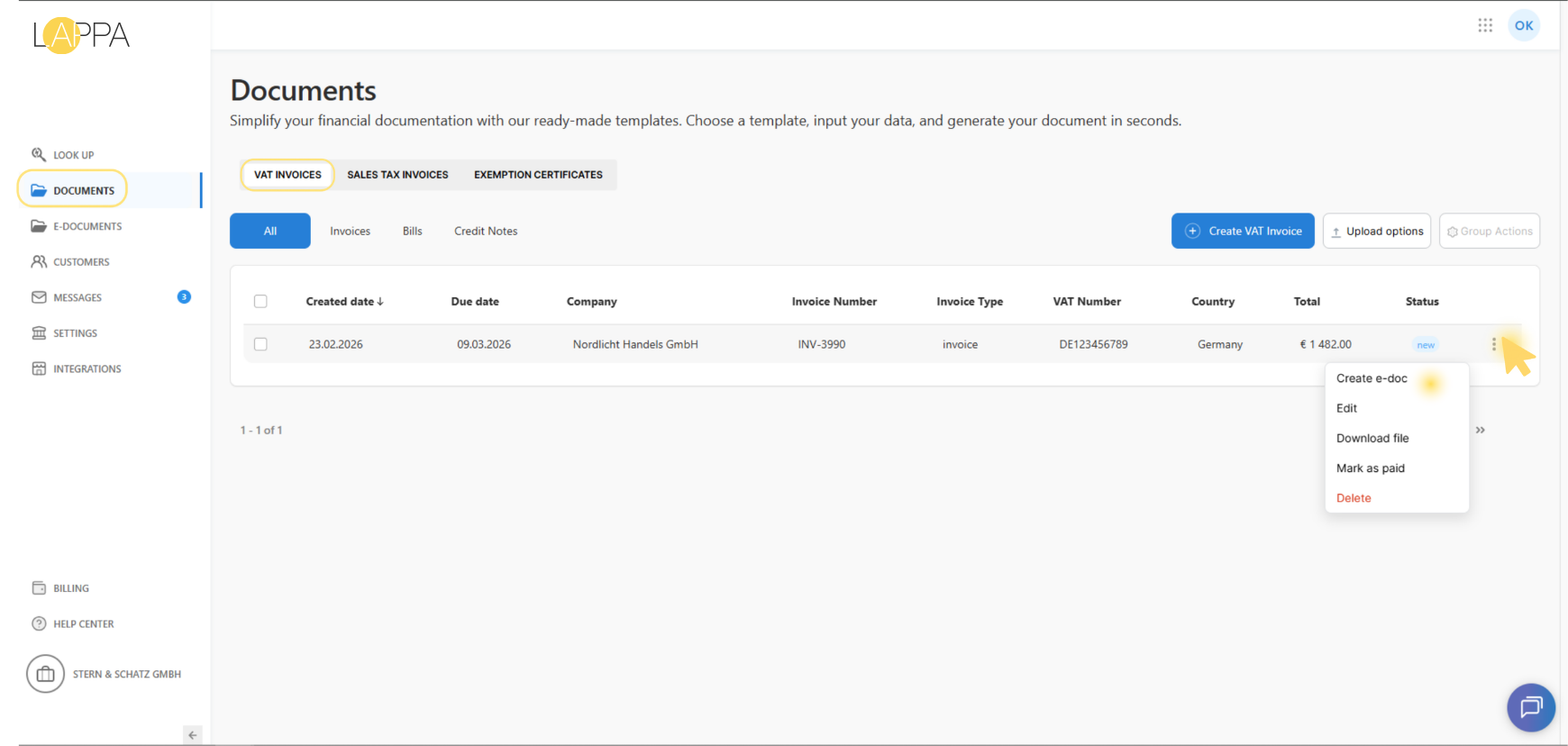
Method 1: Individual creation
- Go to Documents → Invoices
- Find the invoice
- Open the row actions menu (⋮)
- Select Create e-doc
Important: “Create e-doc” is available only for invoices with status other than draft and only when sending_method is not Email.
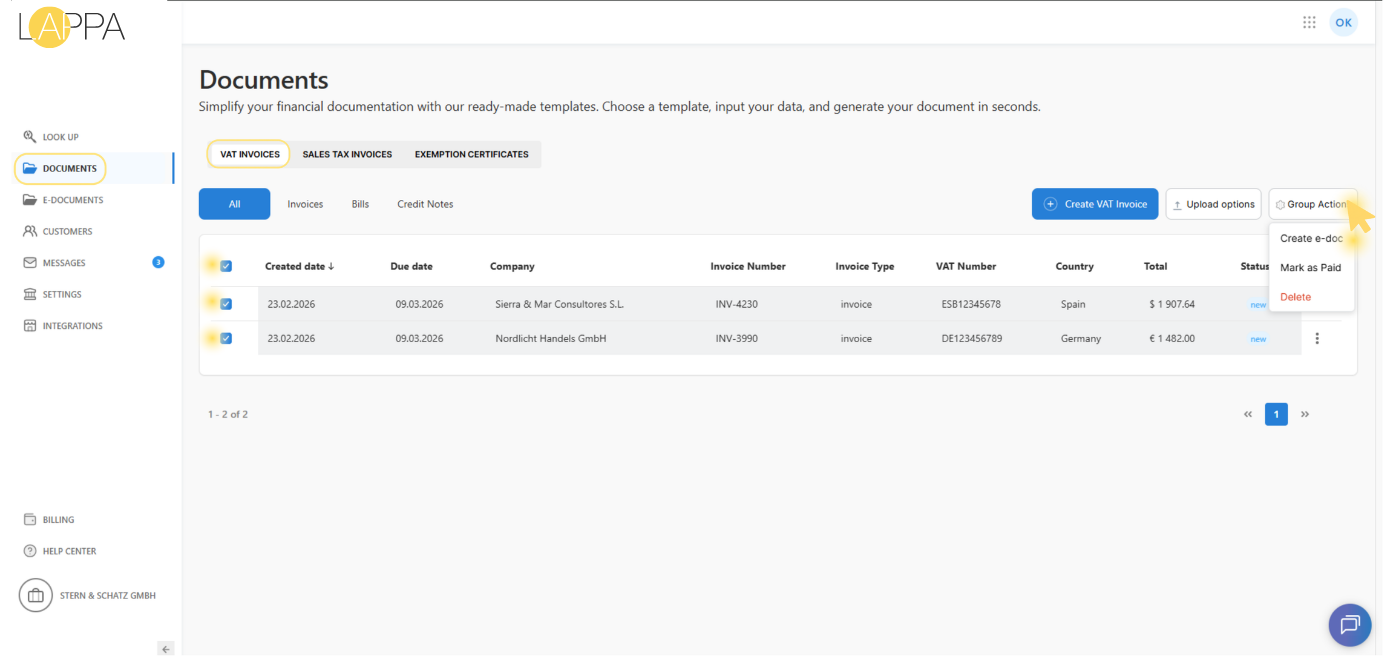
Method 2: Bulk creation (qroup action)
- Go to Documents → Invoices
- Select 2+ invoices using checkboxes
- Click Group Actions
- Select Create e-doc
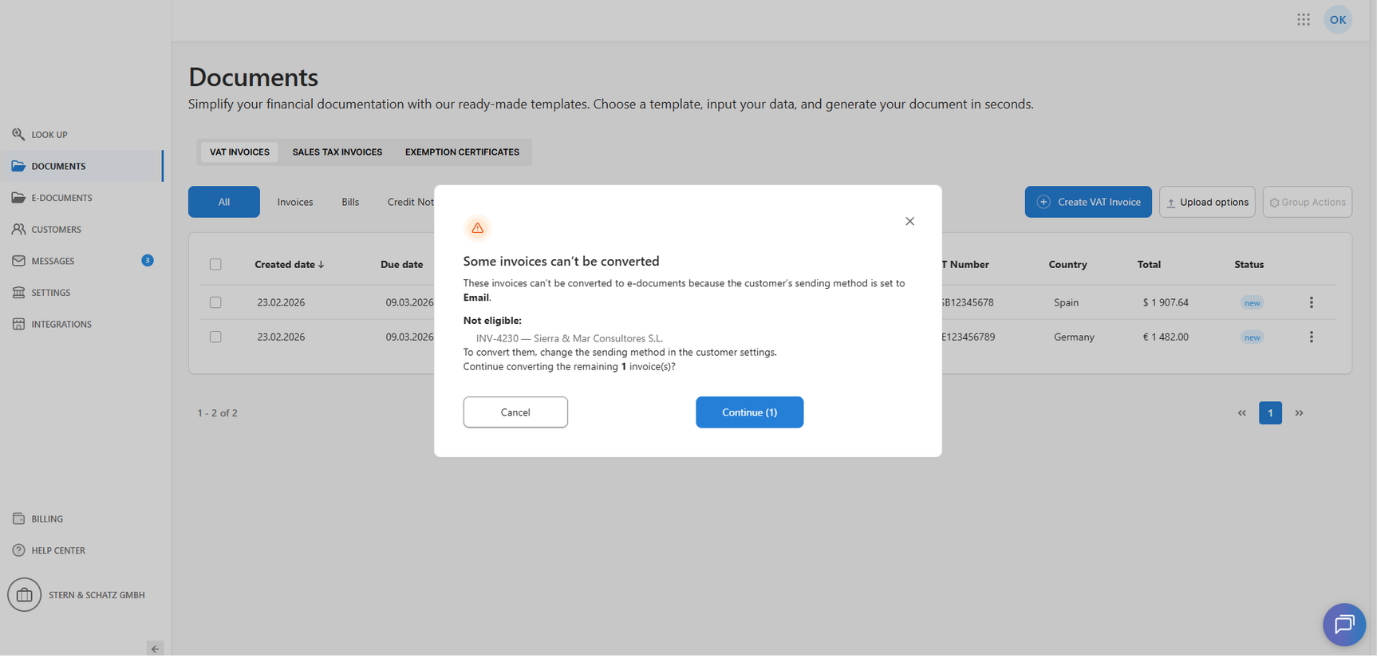
If among selected invoices there are any with sending_method = Email, the system will show a modal with warning. You can continue creating e-documents only for the invoices with supported sending methods.
Step 4 — Send E-Document
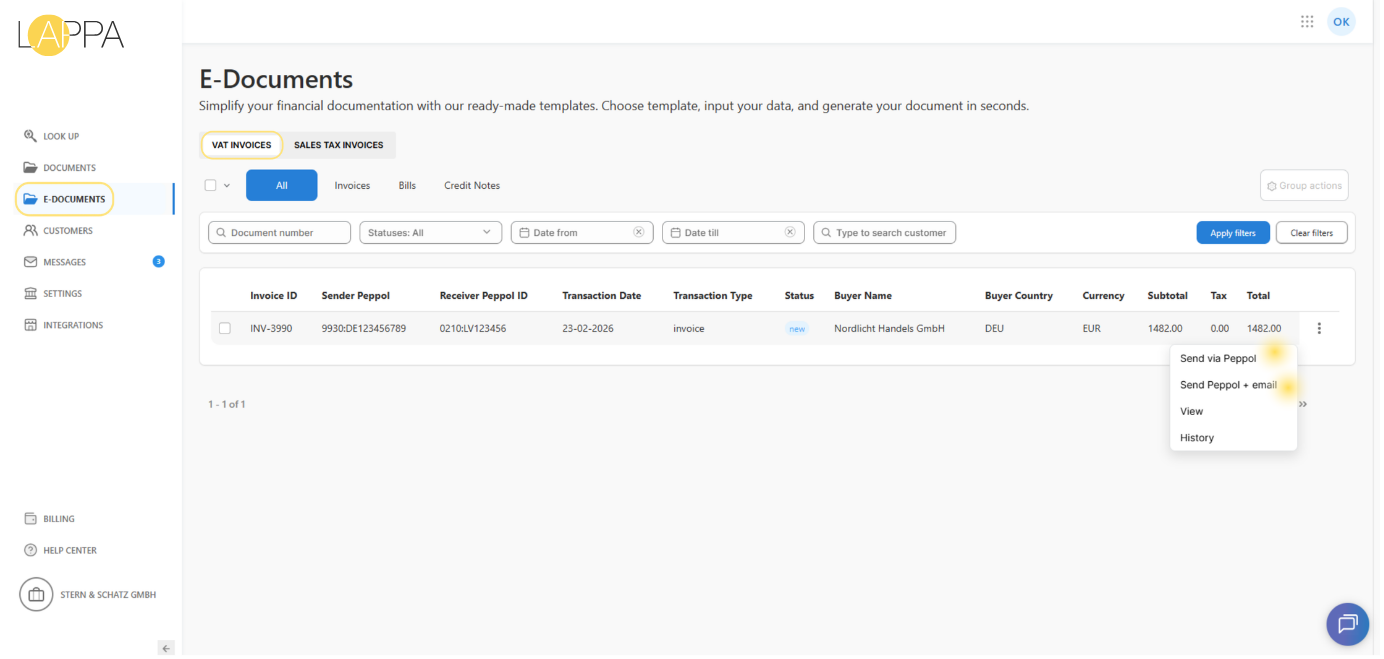
After creation, the e-document will appear in the E-Documents section.
Sending will use the configured Sending method:
- Peppol BIS 3.0 → Peppol network (BIS 3.0 profile)
- Peppol PINT → via PINT profile
- Croatia Fiskalizacija 2.0 → through fiscalization
5. Common issues (quick troubleshooting)
“I don’t see Create e-document”
Possible causes:
- the customer has Email selected as the Sending method
- for Peppol: the customer profile is incomplete, no Peppol ID has been selected, or manager confirmation is pending
- for Croatia: the tax number is missing, or fiscalization activation has not been completed via a manager
- the invoice is still in draft status
“System requires Peppol ID, but I have Croatia”
A Peppol ID is not required for Croatia (Fiskalizacija 2.0). Verify that the correct sending method is selected and that Croatia-specific rules are being applied.
“I selected Peppol ID, but it still won’t send”
This is most likely because manager confirmation has not yet been received. Confirm that the chosen Peppol ID has been reviewed and approved by a manager.
“Bulk creation shows a modal about inability to convert”
This is expected behavior when some of the selected invoices have Email set as the sending method. Simply continue creating e-documents for the invoices with supported methods only.
Still have questions?
Contact us support@lappa.org