
How to add and manage multiple companies on the Lappa platform
Managing several companies under one Lappa account is straightforward. Follow the steps below:
1. Log in and open the company menu
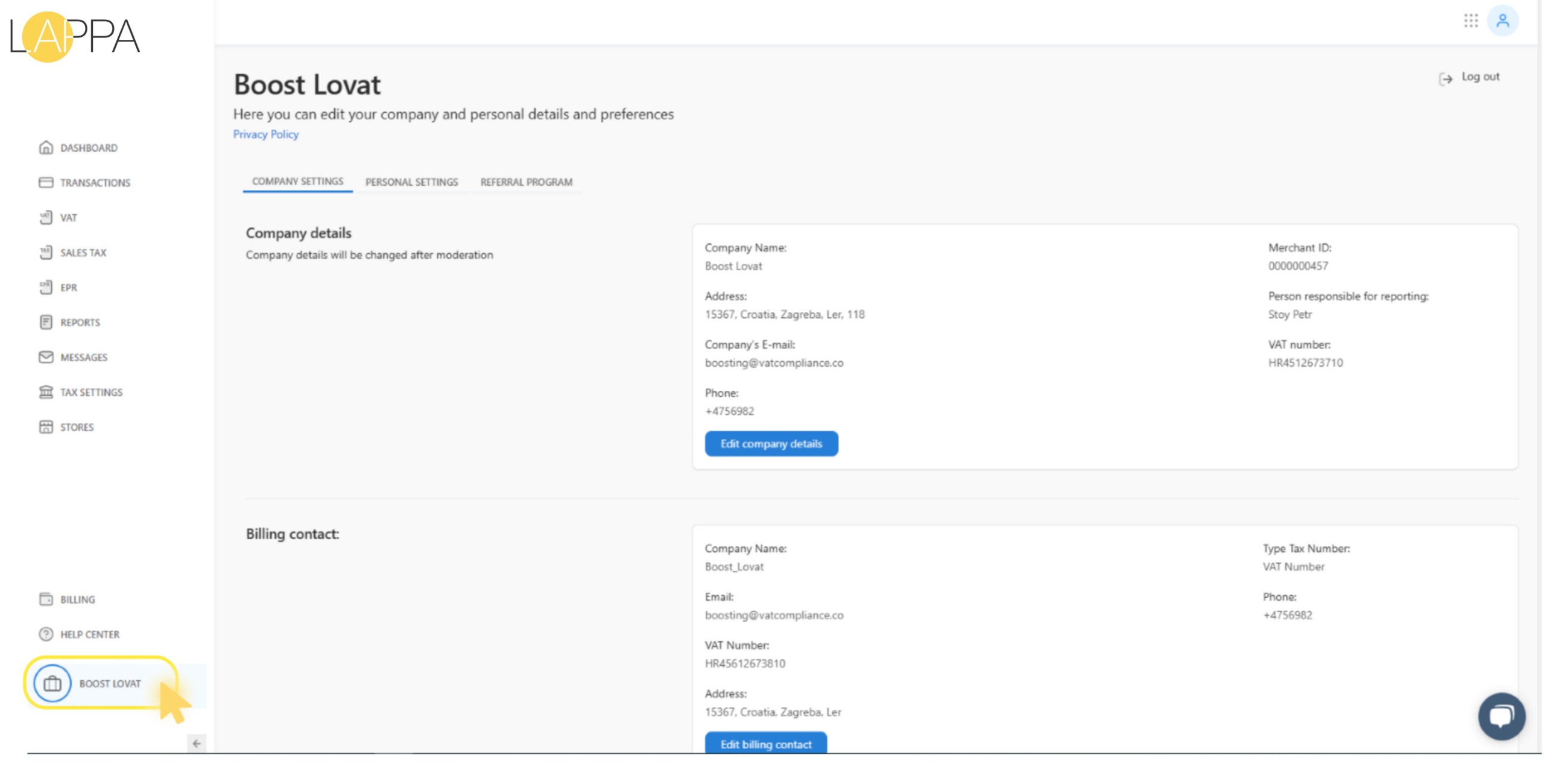
Sign in to your account. In the lower-left corner, click on the name of your active company to expand the company menu.
2. Add a new company
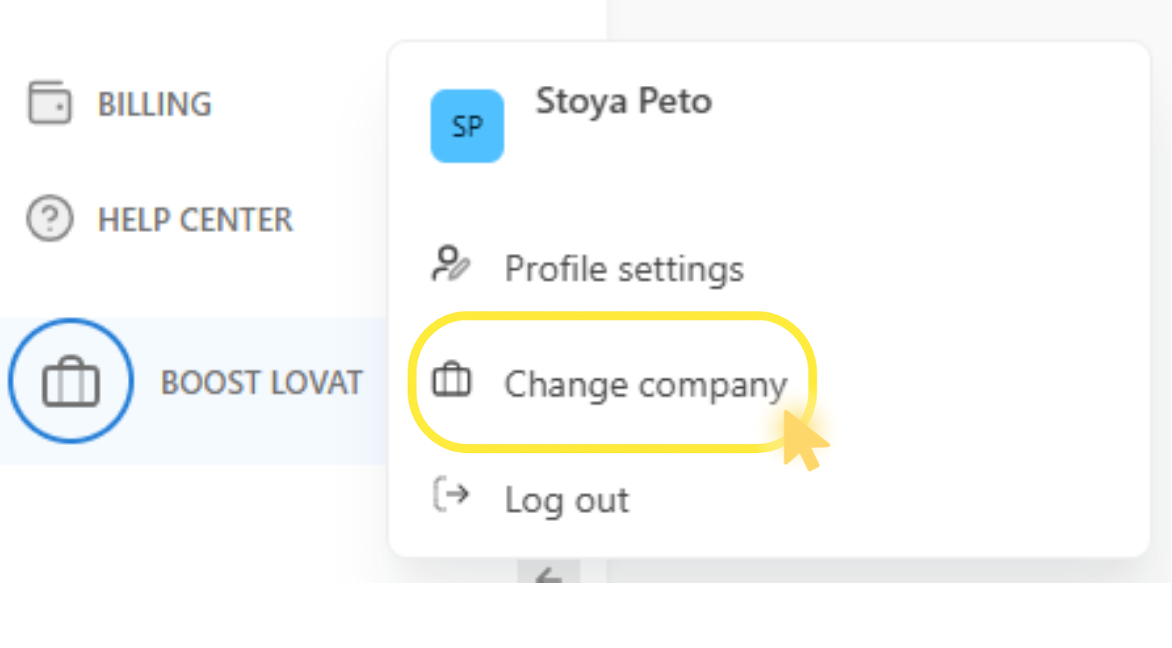
From the dropdown, choose “Change Company”, then select “Add Company”.
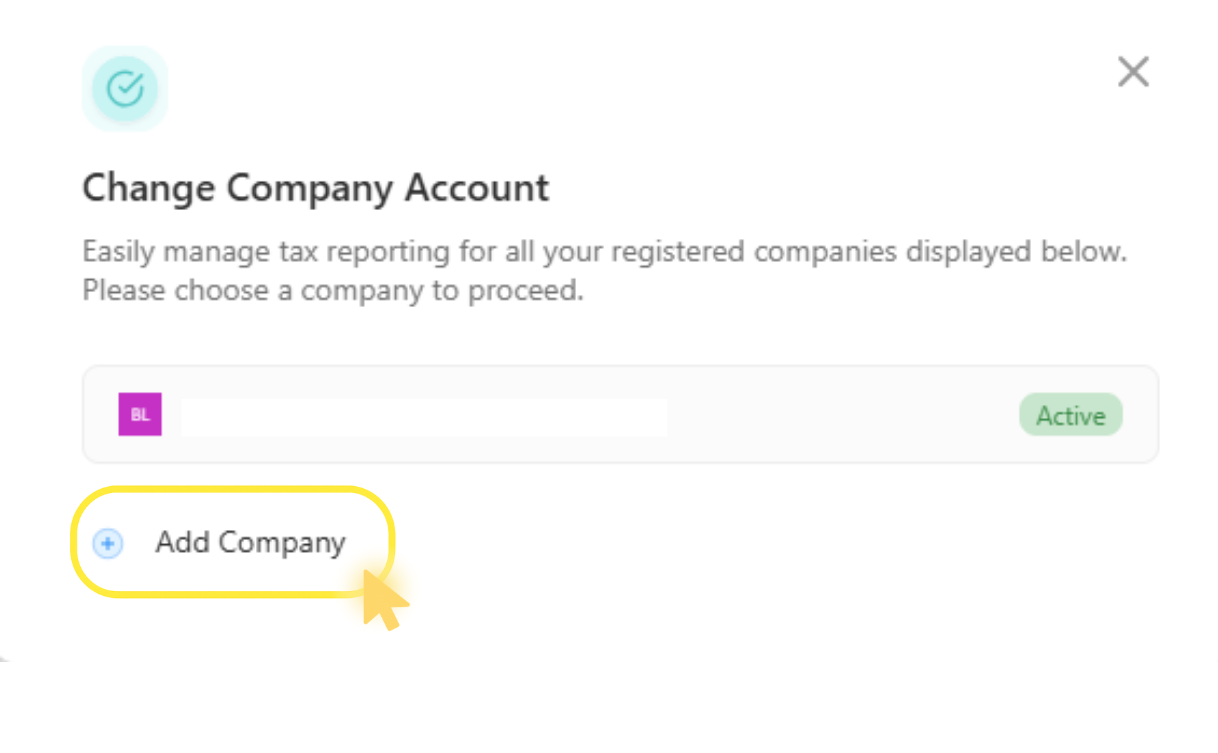
Fill in the company name and the country where it is registered, then click “Add Company” to save.
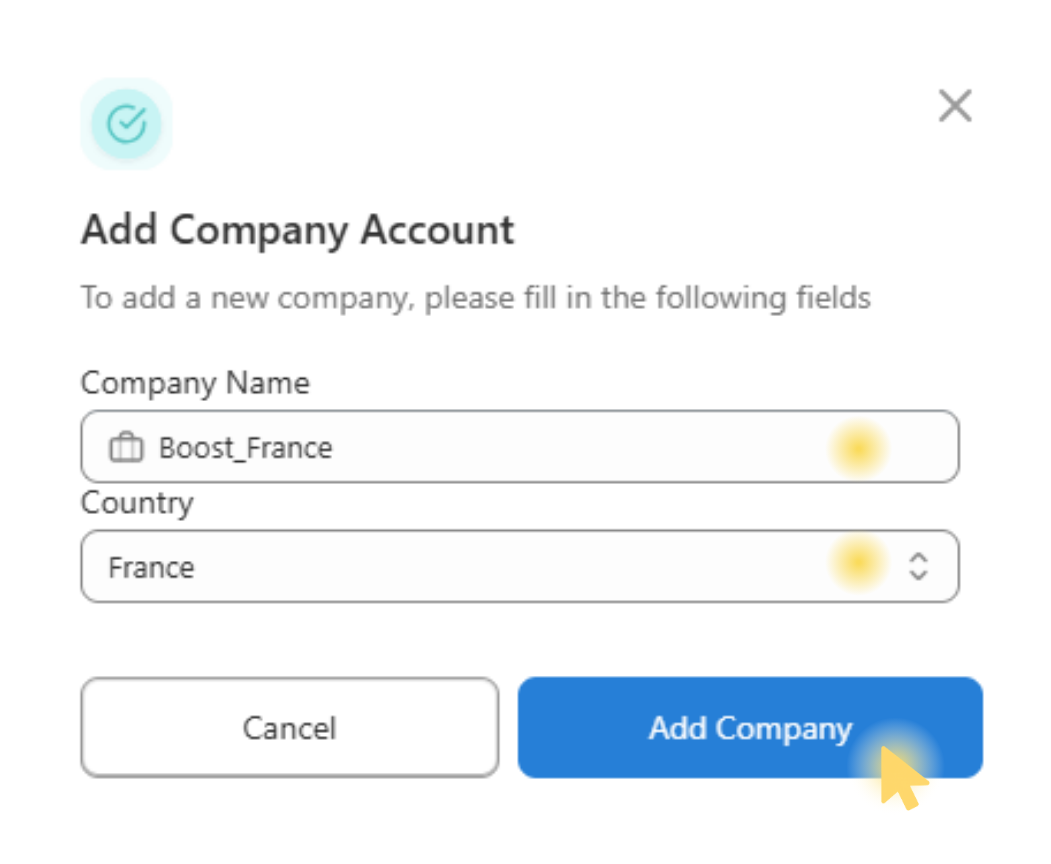
The new company will now appear in your list. Click its name to switch to that workspace.
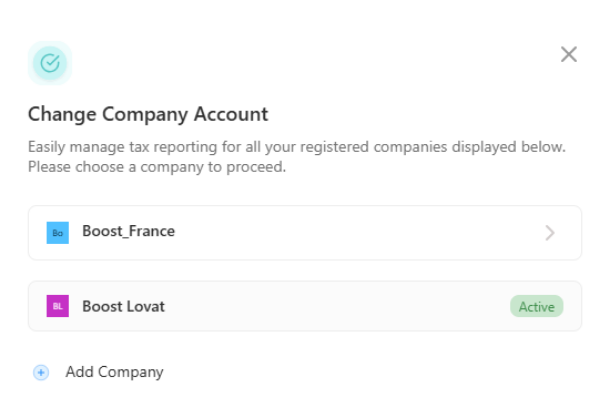
3. Switch and configure
Select the company you just created. You will be redirected to its dashboard, where the following sections are available for configuration:
- Company Settings – core information about your company
- Tax Settings – parameters for VAT, EPR, and other tax obligations
- Store – connection to your sales platforms and channels

Optional: add a user
To grant a user access to this company, navigate to the User Management section, fill in the required information, and click “Add User”. That user will only be able to access the specific company they are assigned to.
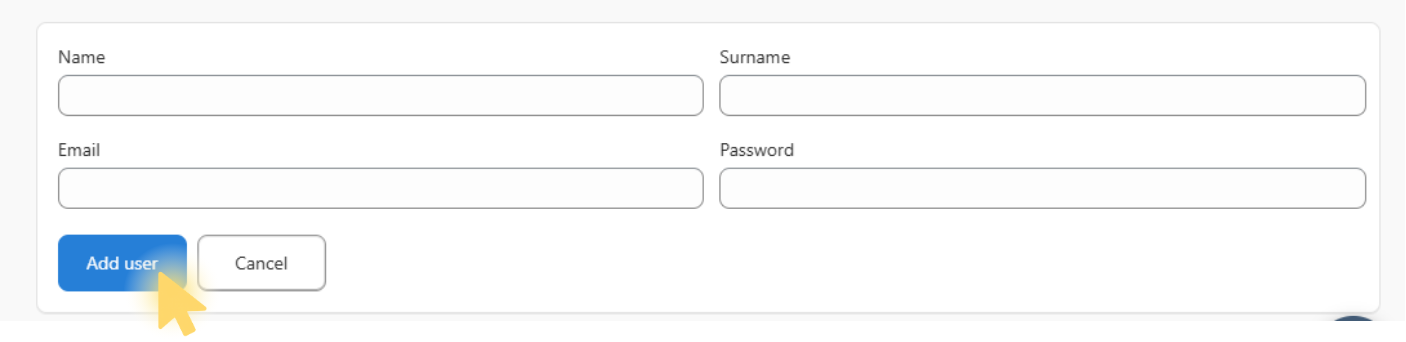
With these steps complete, you can independently manage multiple companies within a single Lappa account — each with its own dedicated settings and full administrative control.
If you encounter any issues during the process, don’t hesitate to reach out to our support team.
Still have questions?
Contact us support@lappa.org