
How to integrate Xero with Lappa
L’Invoice & Xero integration lets you effortlessly forward invoices generated in Xero to L’Invoice for Peppol-compliant invoice processing.
L’Tax & Xero integration makes it easy to upload international invoices directly to the transactions section, simplifying tax return preparation and ensuring all your sales are captured.
Example: Arketto Ltd (UK) sells books and audiobooks across the globe. The company collects subscription payments via Stripe and bank wire transfers. Arketto connects with Stripe and imports B2B transactions from both Stripe and Xero. The company is registered for EU VAT and files VAT returns through L’Tax.
Link your Xero account to your Lappa account. Lappa for Xero enables automatic tax calculations on invoices.
To set up the connection between Xero and your Lappa account for tax compliance, please follow the steps below:
1. Prepare for integration with Xero
To begin the Xero integration, open your Lappa platform and sign in with your credentials.
Once you are logged in:
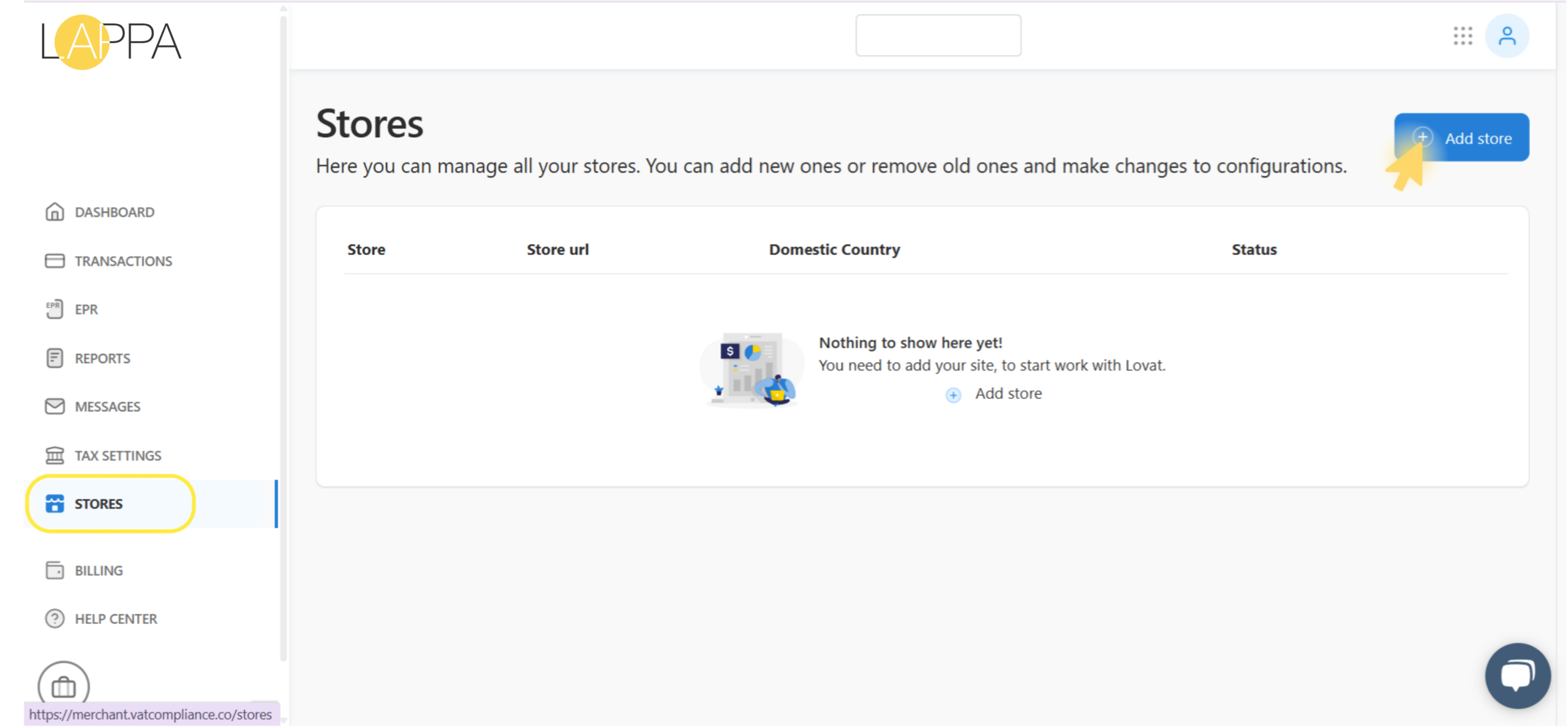
- In the left-hand menu, select STORES.
- In the top-right corner, press the Add store button.
2. Connect Xero to Lappa
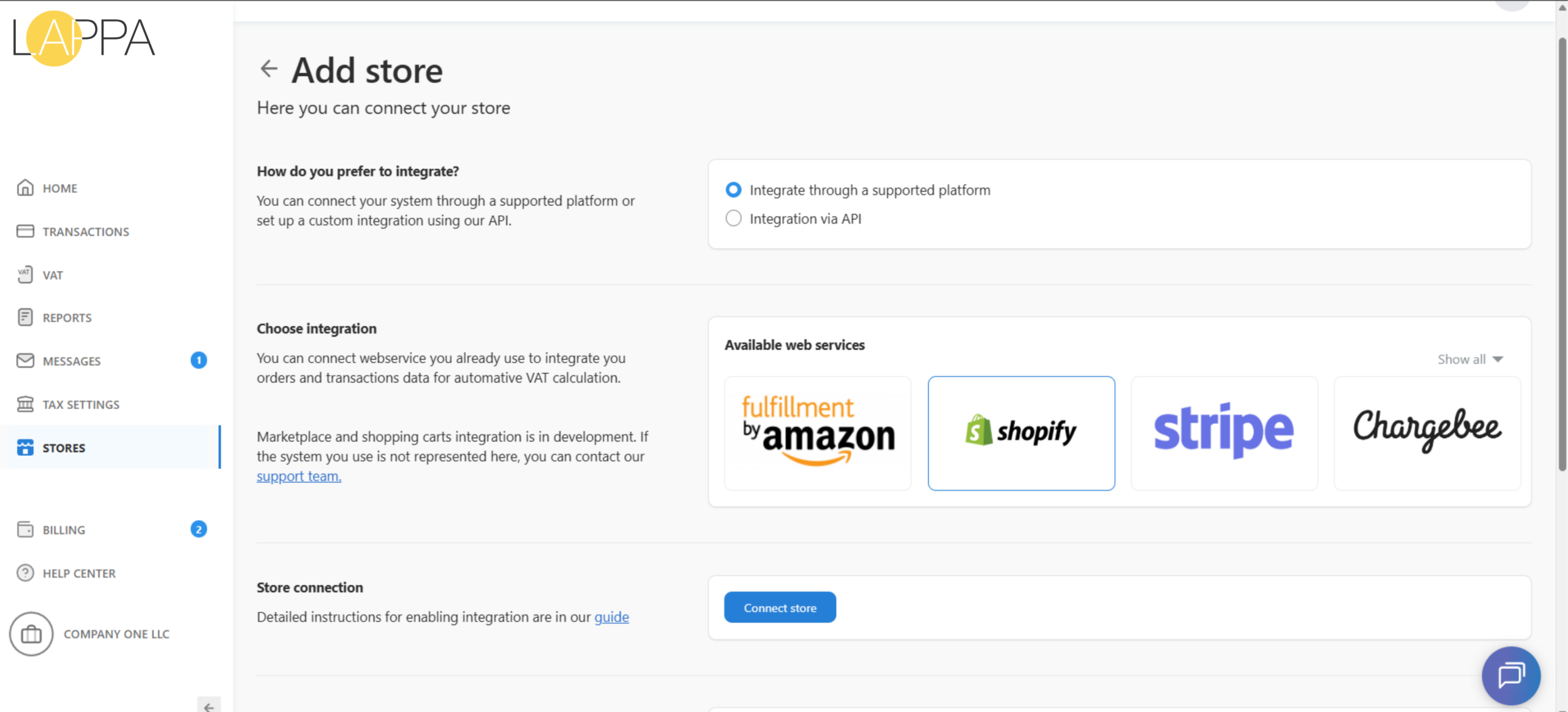
On the Add store screen, indicate how you sell:
- Under “How do you prefer to integrate?”, choose “Integrate through a supported platform”.
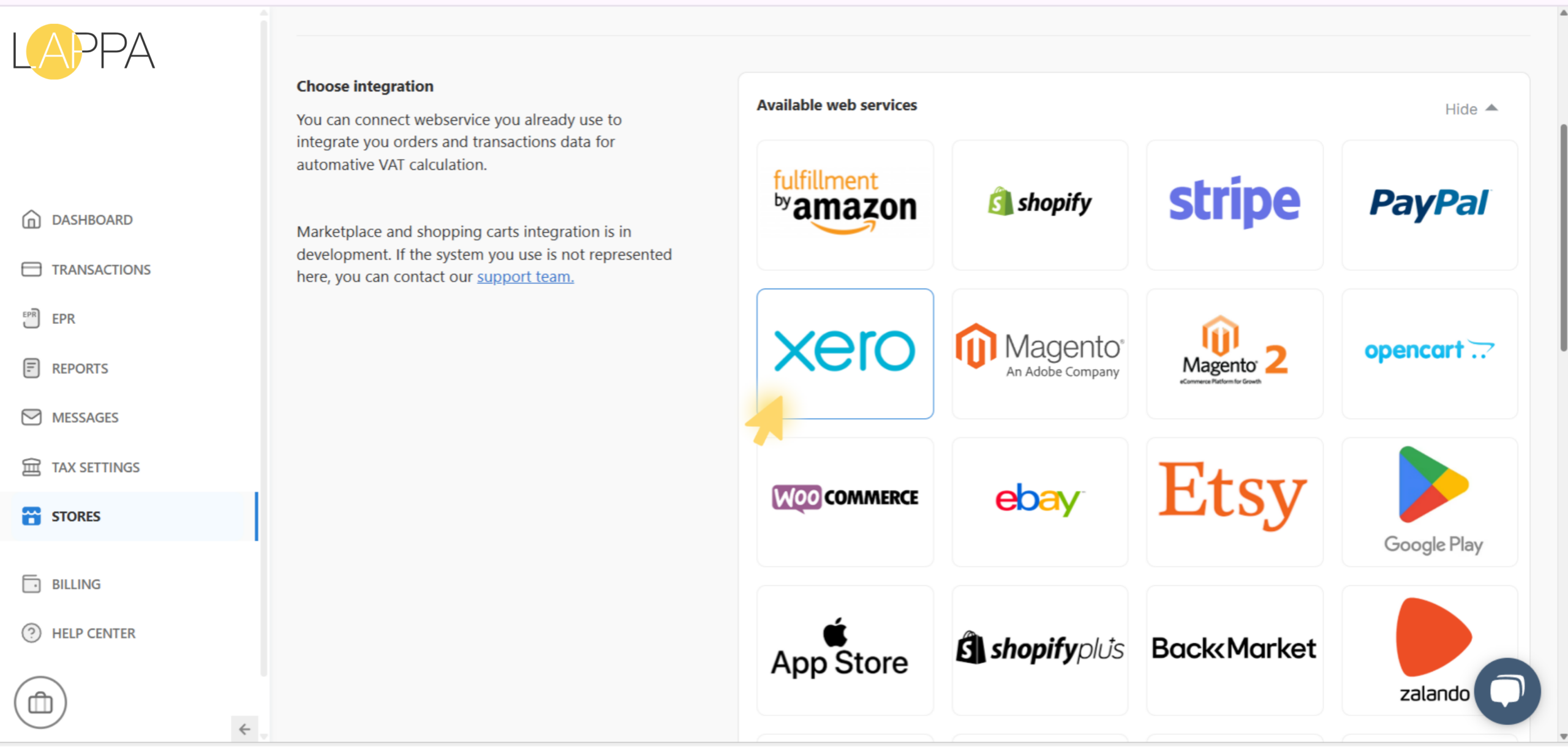
- In the Available web services section, click Show all to display all available integration options.
- Select the platform you wish to connect (in this case — Xero).
3. Fill in store details
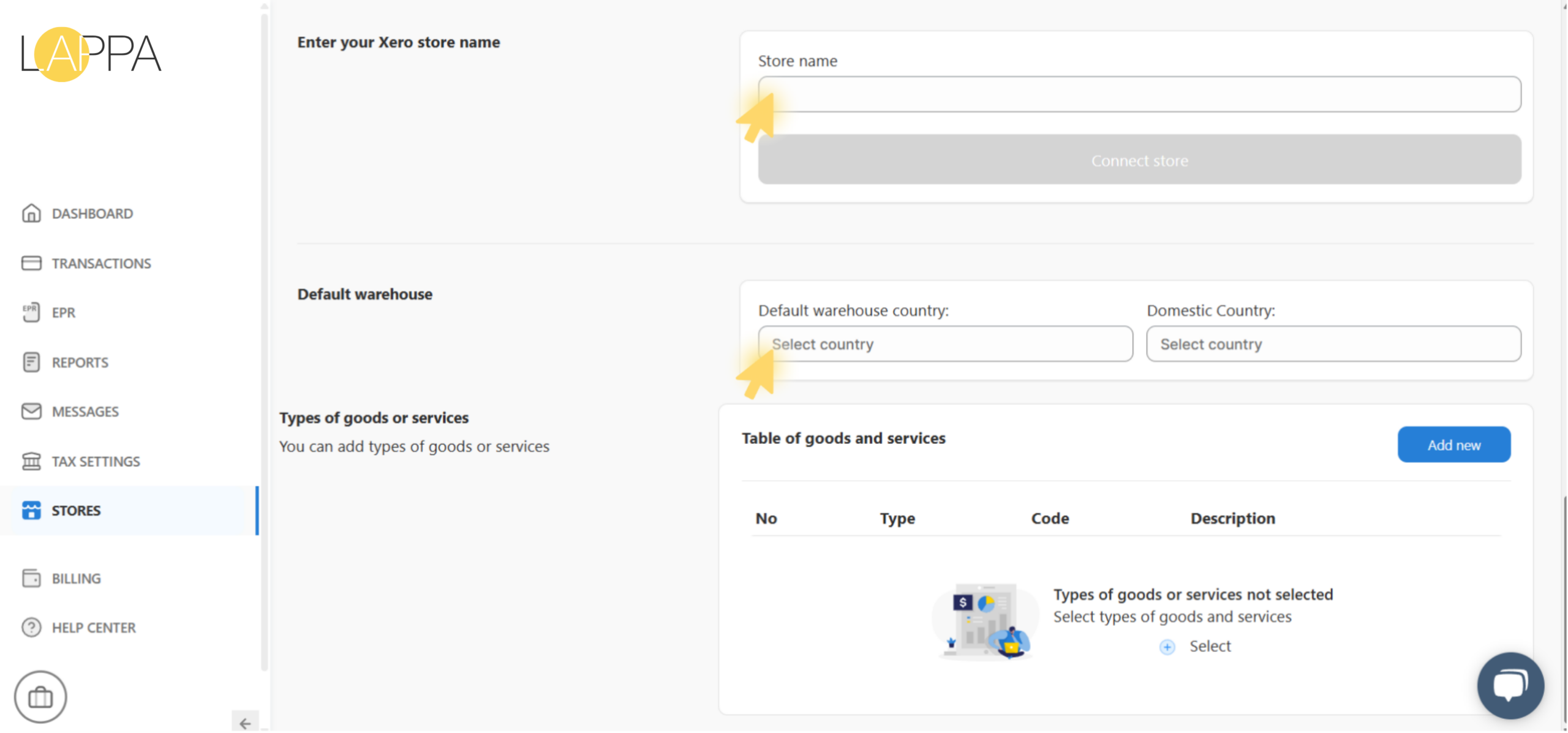
At this stage, you need to provide the main store information:
- In the Store name field, type the name of your Xero store.
- Choose your Default warehouse country and Domestic Country.
Once all the required fields are completed, press the Connect store button to finalize the integration.
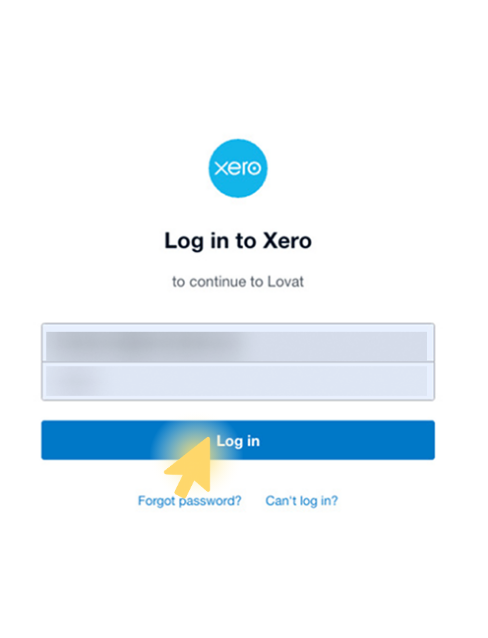
4. Login in Xero account
After pressing Connect store, you will be redirected to the Xero login page.
- Enter the email address associated with your Xero account.
- Enter your password.
- Click Log in to continue with the Lappa integration.
If you have forgotten your password, click Forgot password to initiate a reset.
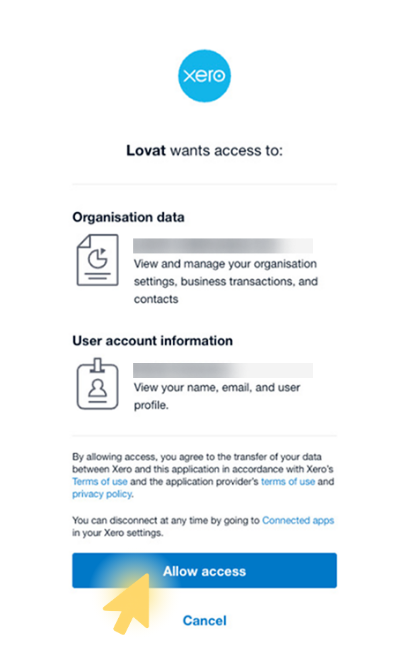
After signing in to Xero, a confirmation screen will appear asking you to grant Lappa access to your account.
Review the permissions being requested:
- Organisation data
- User account information
Click Allow access to confirm and proceed with the integration.
You may withdraw this access at any time through your Xero connected apps settings.
5. Integration Lappa with Xero completed!
Once access is confirmed, your store is successfully linked to Lappa.
From this point on, your Xero account data (transactions, orders, reports) will be synchronized automatically for tax calculation and reporting purposes.
Still have questions?
Contact us support@lappa.org